
A Practical Guide for Small Governments
Interactive maps have become a very useful, and most requested, feature on municipal websites. Whether you want to highlight parks, trailheads, local events, zoning districts, road closures, or service locations, a well-organized map helps residents find what they need quickly.
For small municipalities with limited budgets, Google My Maps is a powerful, free tool that allows staff to build custom interactive maps without specialized software or Geographic Information System (GIS) expertise.
This guide walks you through how to plan, create, and embed a Google My Maps project on your municipal website—along with important legal and practical considerations.
Decide What Your Map Should Do
Before building anything, identify the real purpose of the map. Start with three questions:
- Who will use this map? (Residents? Visitors? Contractors? Public works?)
- What do they need to find quickly?
- What will help reduce staff time answering calls or emails?
Common municipal use cases include:
- Park locations and amenities
- Road closures, paving schedules, detours
- Public facilities (borough hall, police, fire, sewer authority, library)
- Yard waste drop-off sites
- Trail systems
- Snow removal zones
- Holiday event maps (parade routes, parking locations)
- Capital project updates
Keep the goal narrow. A single, well-focused map performs better—and is easier to maintain—than an “everything” map that becomes outdated.
Gather Your Data (and Protect Privacy While Doing It)
What you Might Include
Good maps rely on good data. Collect the locations and details you want to display. This may include:
- Addresses
- GPS coordinates
- Hours of operation
- Links to related information
- Photos
What NOT to Include
Avoid placing anything on your public map that could be considered sensitive or private. Examples include:
- Code enforcement complaints
- Neighbor disputes
- Zoning violations tied to a specific address
- Exact home addresses of council members or staff
- Sensitive infrastructure locations (water, electric, emergency systems)
When in doubt, leave it out or ask your solicitor.
Build the Map in Google My Maps
Before you can build a map, your municipality should have a Google account. The account should not belong to any staff or council member. It should belong to the municipality. If a staff member needs to have access to the account for management purposes, they can be made a manager and access can be revoked down the road if both parties part ways.
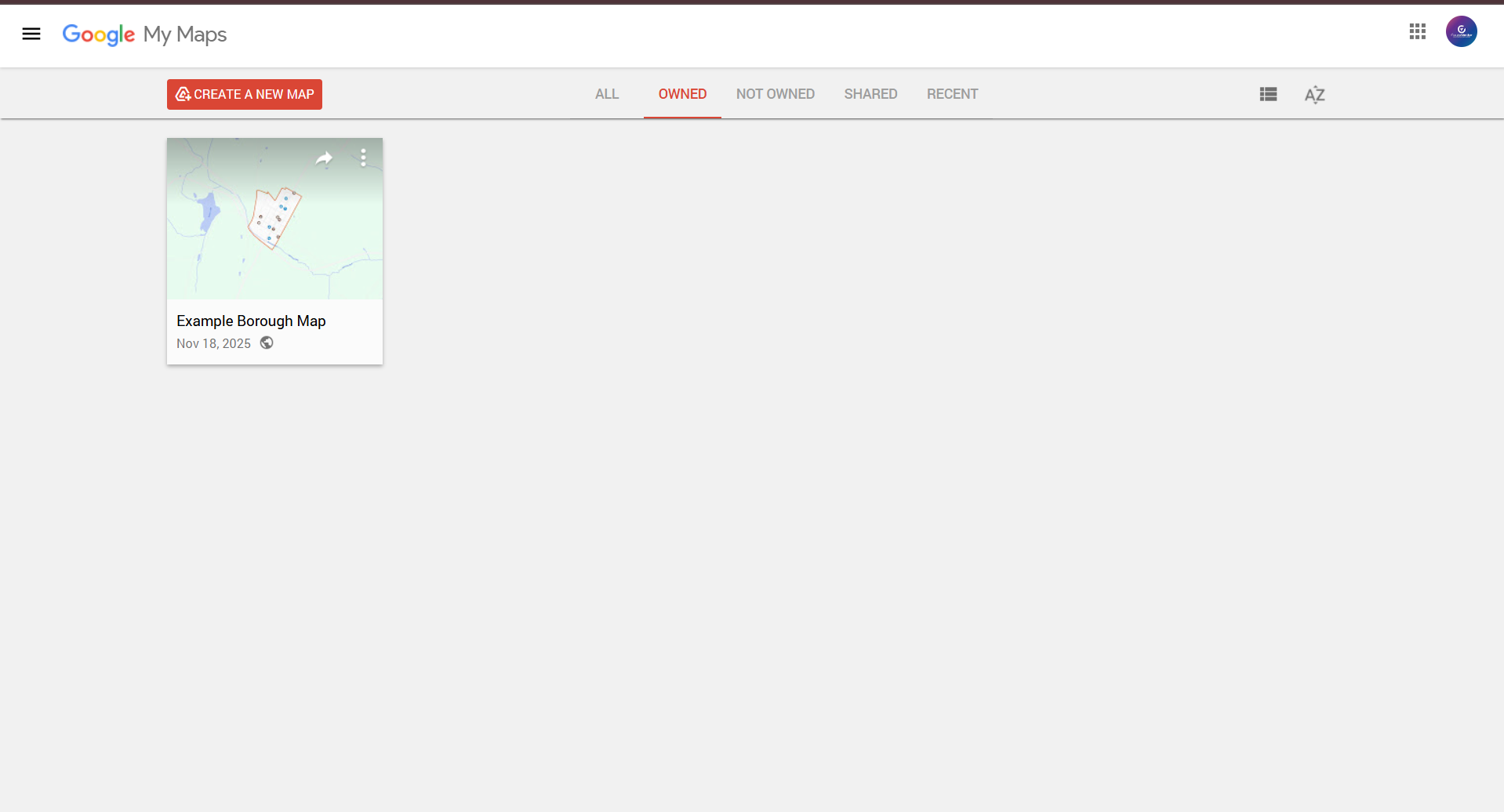
Google My Maps is separate from Google Maps itself. To start:
- Go to https://www.google.com/mymaps (Make sure you’re logged into the correct Google Account!)
- Click Create a New Map
- Name your map and organize items into layers (e.g., Parks, Facilities, Road Work).
- Add locations by entering addresses or dropping map pins.
- Customize colors and icons to keep items visually clear.
- Add descriptions, links, and photos to each pin.
Pro Tips
Use layers sparingly to avoid overwhelming users.
Keep your icons simple and color-coded by category.
If staff from multiple departments contribute, standardize labels and descriptions.
Make the Map ADA-Friendly
Any embedded tool must be accessible. While Google My Maps is not fully WCAG ADA-compliant, municipalities can take steps to minimize risk:
- Provide all key information in text form on the page as well, not only in the map.
- Example: Before embedding, add a bullet list of park names and addresses.
- Use clear color contrasts on map icons.
- Avoid relying solely on color to convey meaning.
- Add an “If you need assistance” accessibility statement near the map.
This approach ensures residents using screen readers can still access the information.
Embed the Map on Your Municipal Website
This is an example only. The data on the map is not accurate.
Once your map is ready, you must set the permissions correctly for it to be shared on the site. The map must be visible to: Public or Anyone with the link. Once set, you can gather the code and embed the map via code on your municipal website!
Users can then click the icon in the upper left corner to reveal the legend and interact with your new map.
Placement Matters
Put the map on a page where residents expect it, such as:
- Parks & Recreation
- Public Works
- Trash & Recycling
- Events
- Road Work Updates
- “Interactive Tools” or “Explore the Borough” page
Make sure it sits above the fold on mobile for easy access.
Keep It Updated (Or It Will Work Against You)
The number-one failure point for municipal maps is outdated information. Choose one responsible staff member per department to maintain accuracy.
Tips for consistency:
- Schedule quarterly check-ins.
- Add map updates to your department’s workflow.
- Remove old events or discontinued programs promptly.
- Keep layer names consistent.
A good rule: If your borough wouldn’t post outdated information on Facebook, don’t leave it on your map.
7. Advanced Options (If You Want to Level Up)
For municipalities with extra capacity, like a trusted web partner, Google My Maps can do more:
- Import spreadsheets to bulk-add locations.
- Use icons to show project stages (planned, in progress, completed).
- Link map layers from other departments (Public Works, Parks, Police).
- Create seasonal maps, like leaf collection zones or holiday parking.
- Embed forms that let residents report potholes, streetlight outages, or park issues.
Just make sure any form complies with your data archiving and Right-to-Know rules.
Conclusion
Google My Maps gives municipalities a low-cost, resident-friendly way to present useful information visually. With careful planning, privacy awareness, and ongoing updates, you can build a tool that supports residents, reduces staff workload, and elevates the usefulness of your website—without needing expensive GIS software.